Open source · MIT · Windows 10 & 11

FPS Unlocker for Weak PCs.

A lightweight Windows tool that removes Roblox's frame cap and tunes performance flags for older hardware. Pick a preset, click one button, and play—no setup, no signup, no waiting.

No ads, no trackersNo account requiredFully reversible anytimev2.1
Lifts frame cap instantlyWorks offlineOne-click presetFully reversibleZero ads
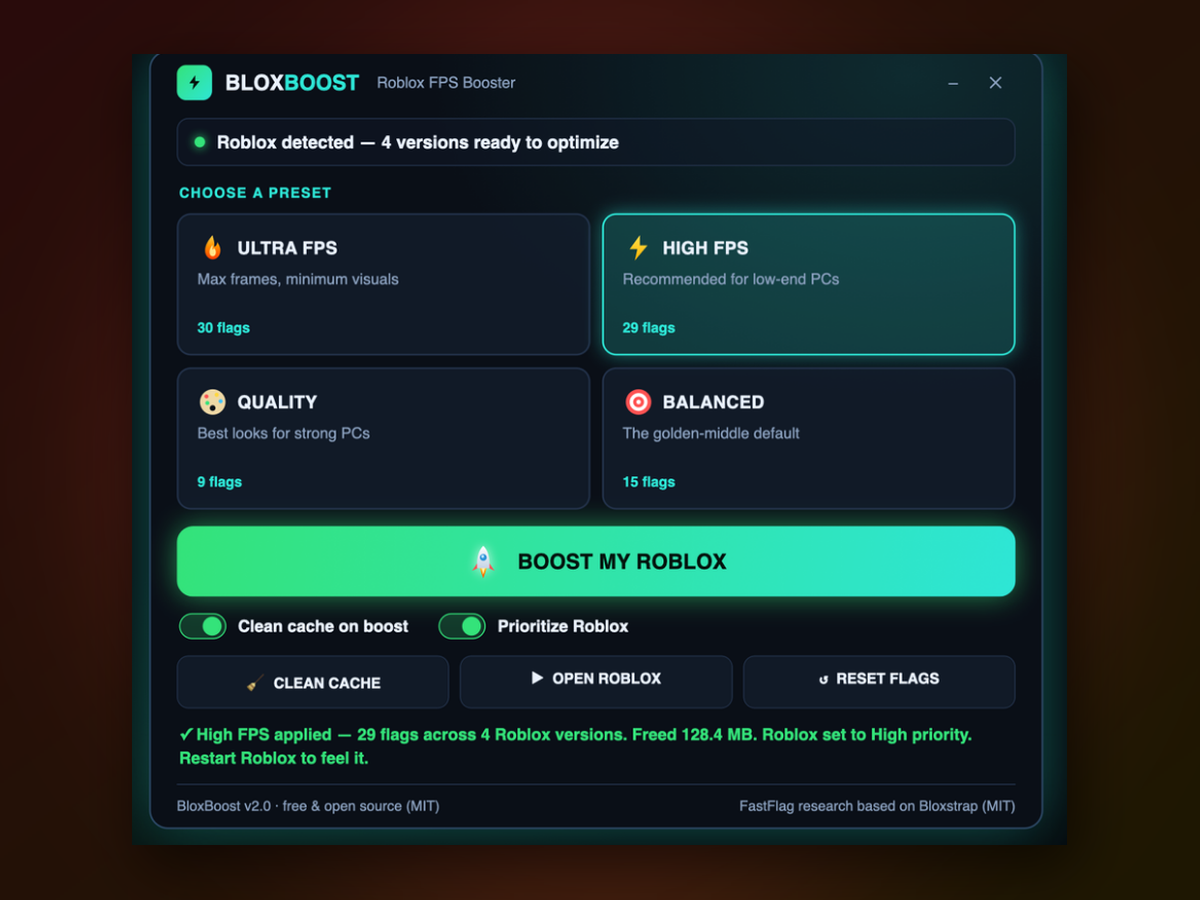
FPS Unlocker PC app window on Windows
Quick start

Get running in four steps.

The app opens straight to a dashboard—no wizards, no tutorials, no waiting.

1
Download and unzipExtract the folder anywhere on your drive and launch the app—no installer needed.
2
Pick your presetChoose Ultra, High, Balanced, or Quality based on how old your PC is and how many frames you want.
3
Click Boost My RobloxThe app applies the flags, wipes the cache, and raises priority all at once.
4
Launch or play normallyHit the Launch button in the app or open Roblox the usual way—changes are already live.
Built for weak PCs

FPS Unlocker PC at a glance.

Version2.1
PlatformWindows 10 and 11, 64-bit
InstallPortable, no installer
LicenseMIT, source on GitHub
PriceFree, no account
LanguageEnglish
Real results
Inside the appFPS Unlocker PC window

See the difference on your machine.

The app removes Roblox's hard 60 FPS ceiling and applies settings tuned for your hardware tier. Even on integrated graphics, the smoothness jump is immediate.

Ultra preset for potato laptopsStrips visuals down to bare minimum and unlocks the frame cap entirely—survival mode for the oldest machines.
High preset hits 360 framesVoxel lighting plus an aggressive frame cap gives you playable speed without the blurry look of vanilla 60.
Balanced keeps the look you knowBumps to 144 FPS with ShadowMap lighting—smooth gameplay without sacrificing how the game actually looks.
Why it works

Why this unlocker works for budget hardware.

Most Roblox boost tools are either overly complex or touch things they shouldn't—this one stays simple and safe.

01

Uses Roblox's own settings

The app writes to the same config file that Bloxstrap uses. No hacks, no injections, no game edits. Roblox won't flag it, updates won't break it.

02

Cache wipe included

Clears logs, temp files, and cached assets so your old drive isn't dragging the game down. You see exactly how many MB you reclaimed.

03

Bumps CPU priority

Sets the running player to High priority across every core, so frame timing stays steady even on crowded budget systems.

04

Completely reversible

One Reset button undoes everything. No leftover files, no hidden changes. Go back to vanilla Roblox anytime in a single click.

Questions

Common questions.

Is this safe to use?

Yes. The app writes to Roblox's own ClientAppSettings file—the same mechanism that Bloxstrap and community FastFlag packs rely on. It's open source under MIT, fully readable, and doesn't touch your system or account.

Does it work on Windows 11?

Yes, fully. Windows 10 and 11 are both supported.

What if I want to go back to normal Roblox?

Click the Reset button. Every change the app made is instantly undone, and Roblox returns to its original state.

Do I need an account or login?

No. The app opens straight to the dashboard with no signup, no authentication, nothing.

Will this affect other games?

Only Roblox. The app only modifies Roblox's settings folder. Your other games are untouched.

How much disk space does it use?

The app itself is lightweight. The cache wipe actually frees up space—sometimes hundreds of megabytes depending on how long you've been playing.

Can I run it on a laptop?

Yes. It's built specifically for weak hardware, old laptops, and budget desktops. The older the machine, the more noticeable the boost.
Stop playing at 60 FPS on a machine that can do better.

Download FPS Unlocker PC, pick your preset, and feel the difference in the first match.

Download for Windows
Latest release · v2.1